 Translate
Automation & Control
Integrated with various third-party sensors (including environmental sensors, thermal imaging sensors, etc.), the Automation & Control function collects data from these devices and uses it to enable intelligent lighting control within our system.
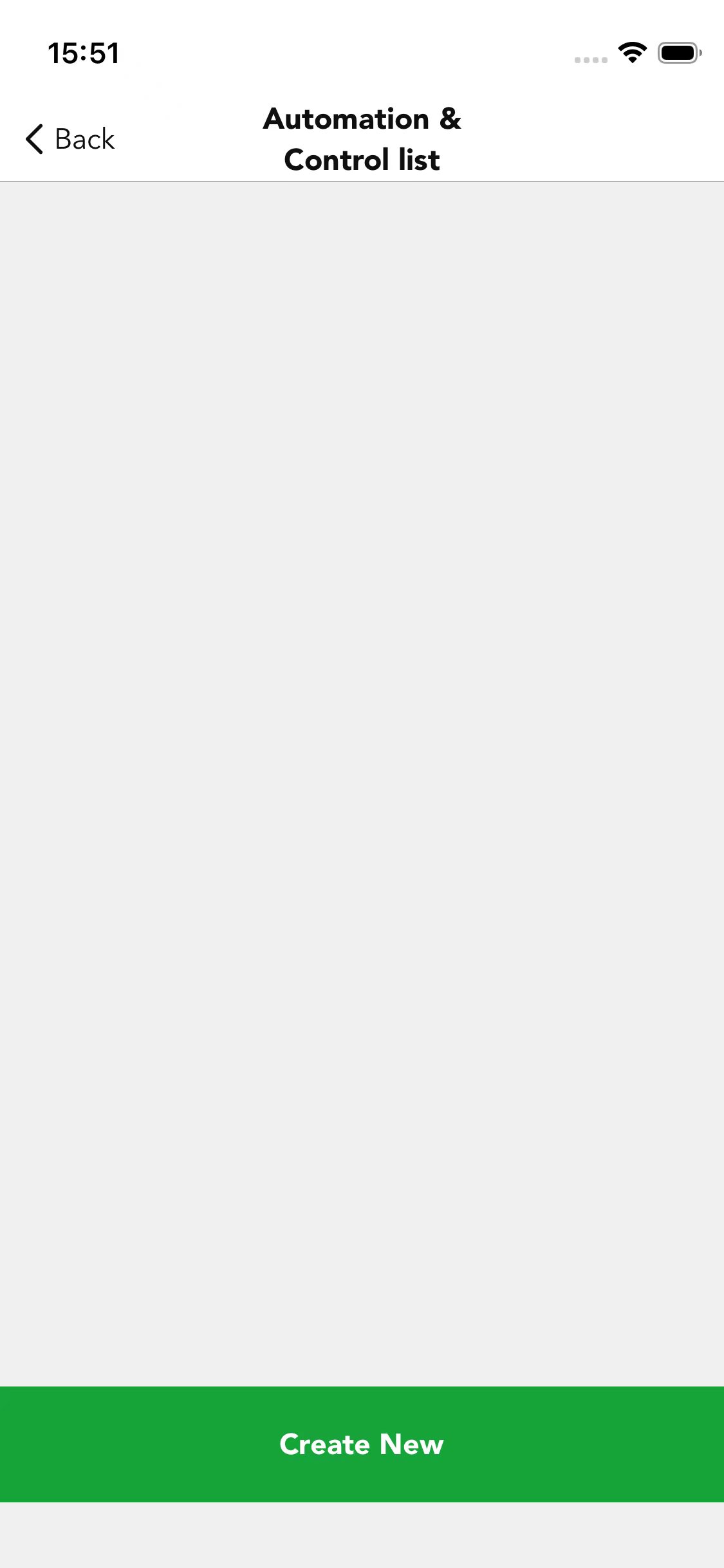
Navigate to the Automation & Control page and tap Create New to create a new automation task.
You can edit the task name and set the automation status, which is active by default.
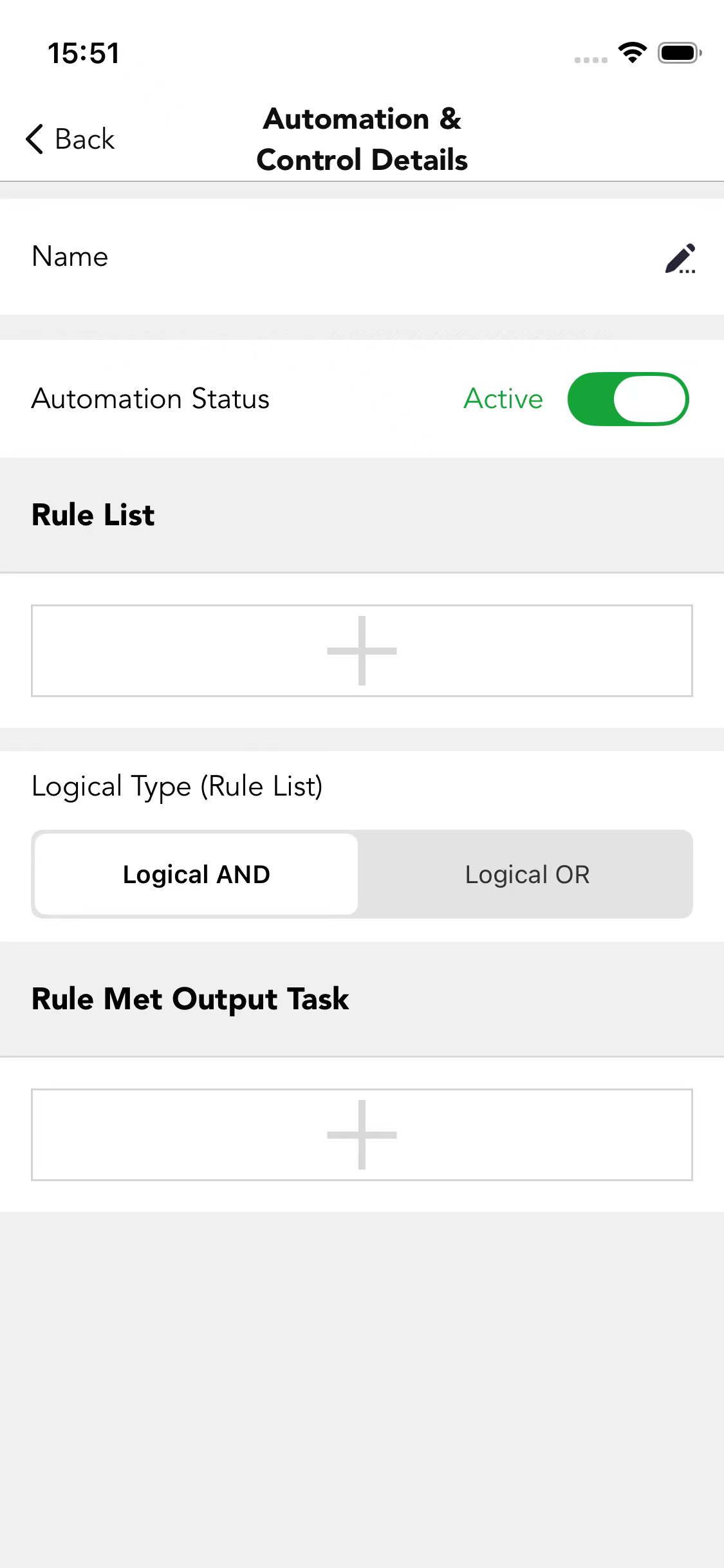
Rule List
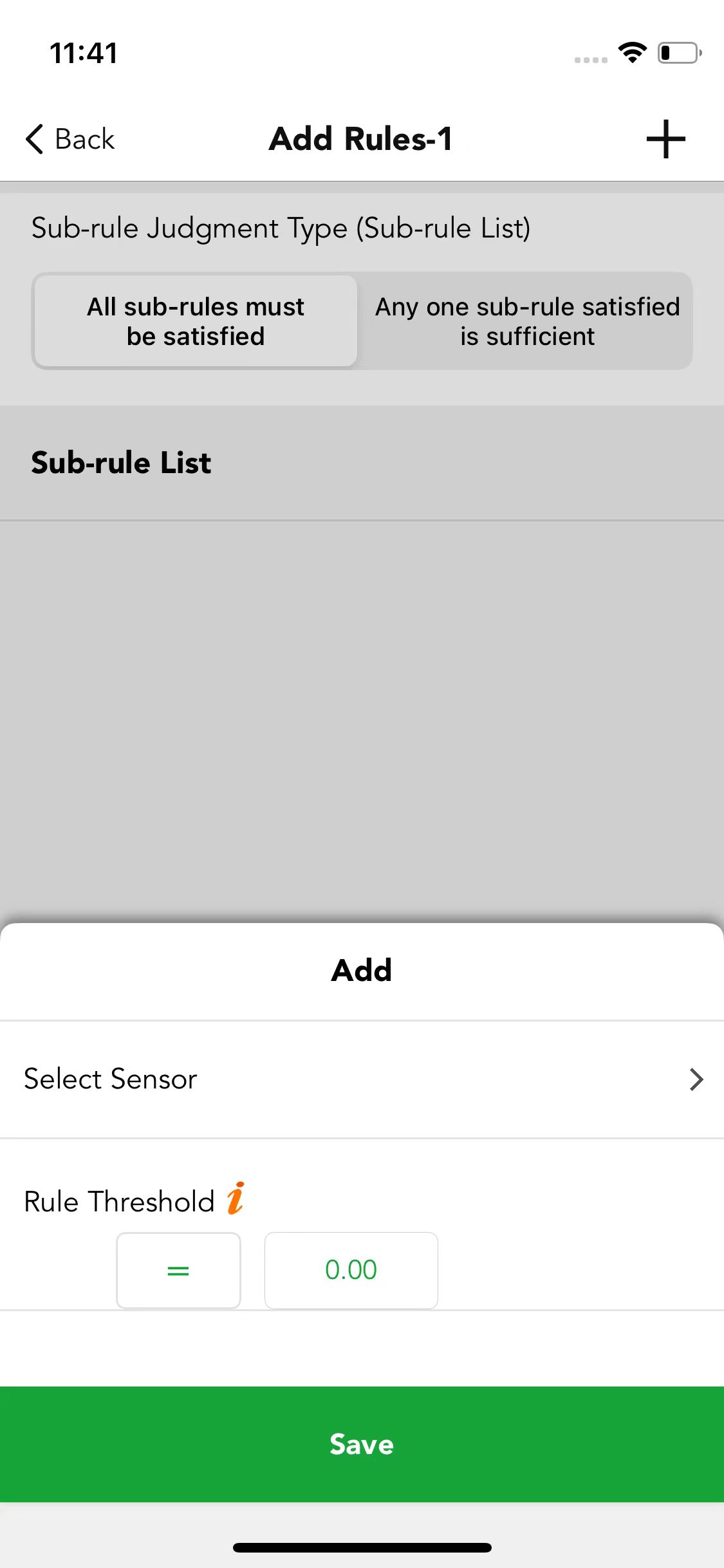
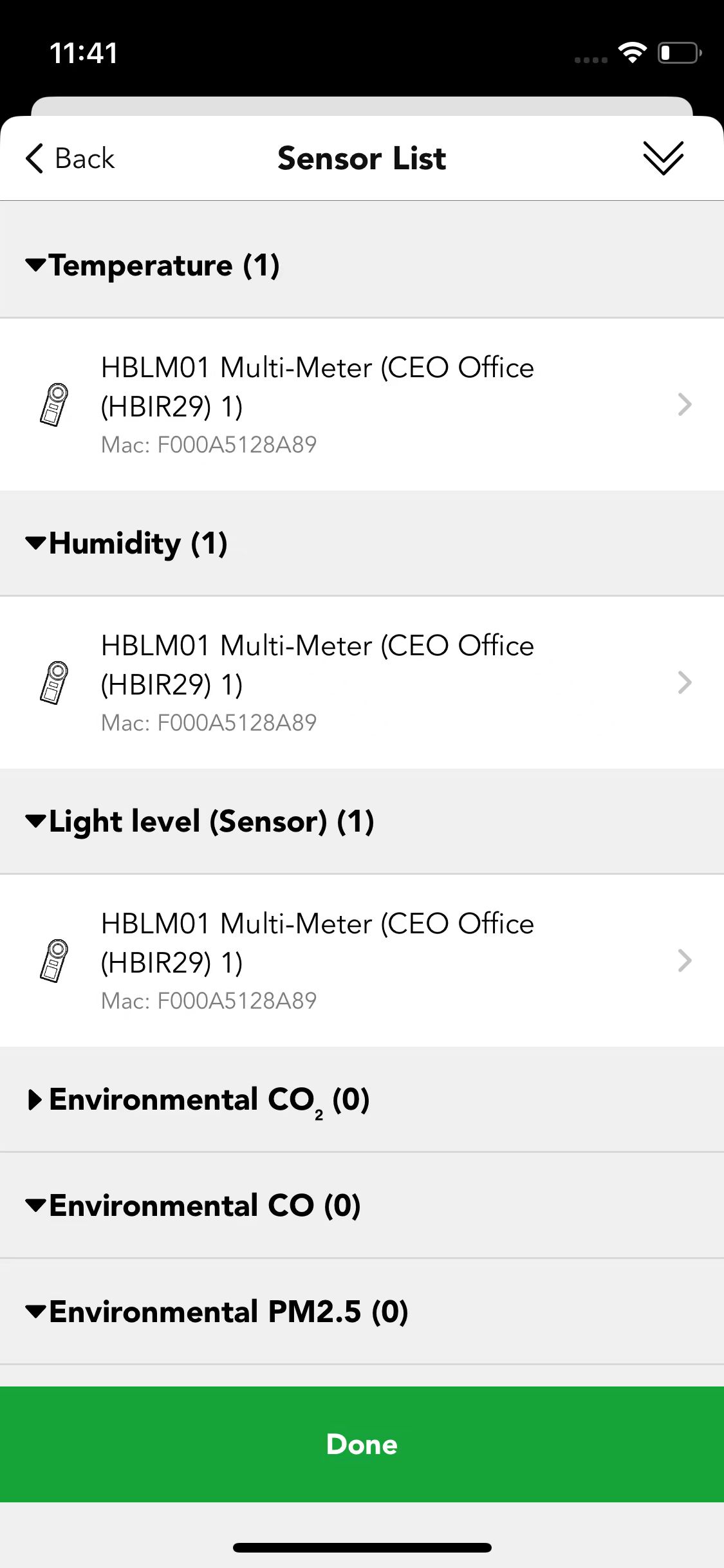
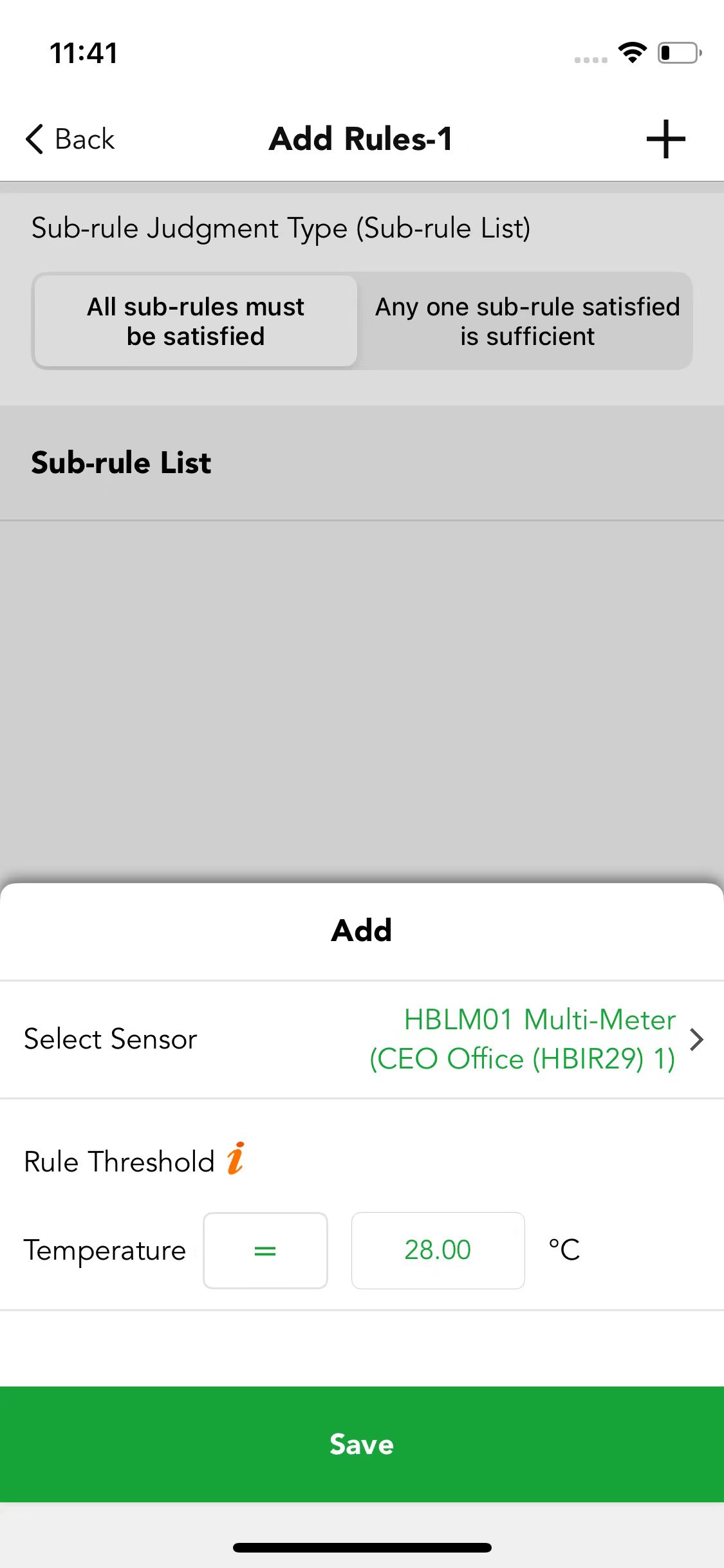
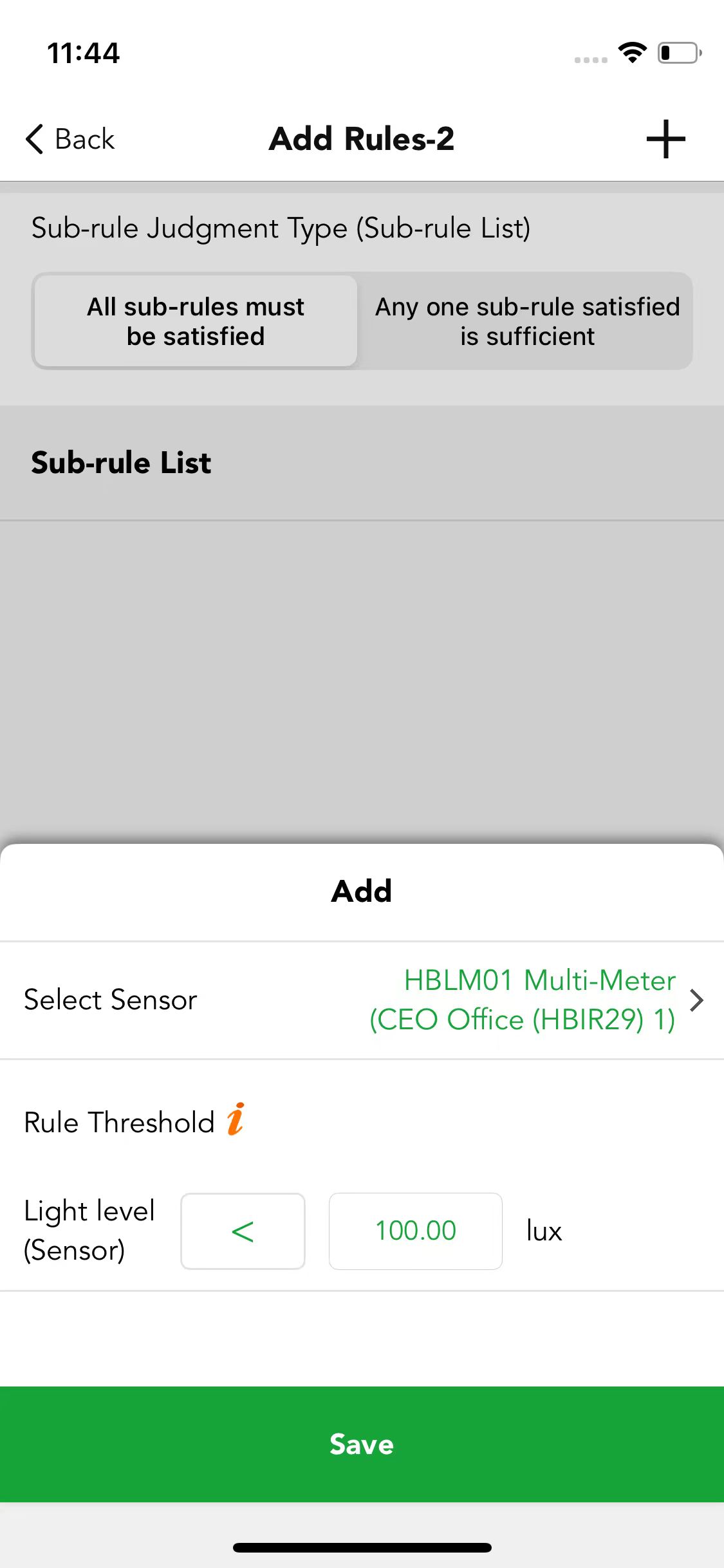
In the Rule List, you can add different sub-rules as needed. As this function integrates with multiple sensors including environmental sensors, select the relevant sensors and set the rule thresholds as required. You can also choose the sub-rule judgment type to define whether all sub-rules must be satisfied or any single sub-rule is sufficient.
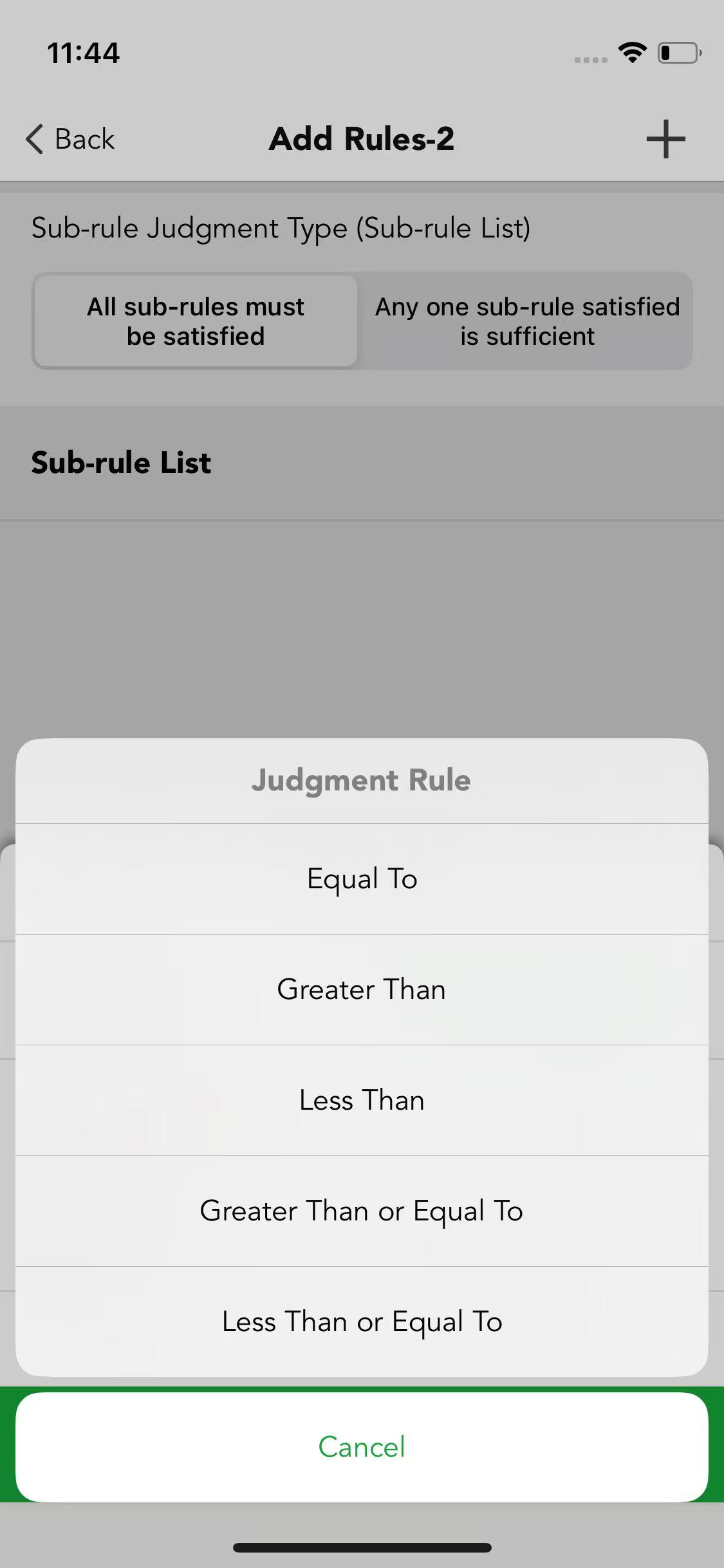
If multiple rules are configured, the logical type can be selected according to actual needs.
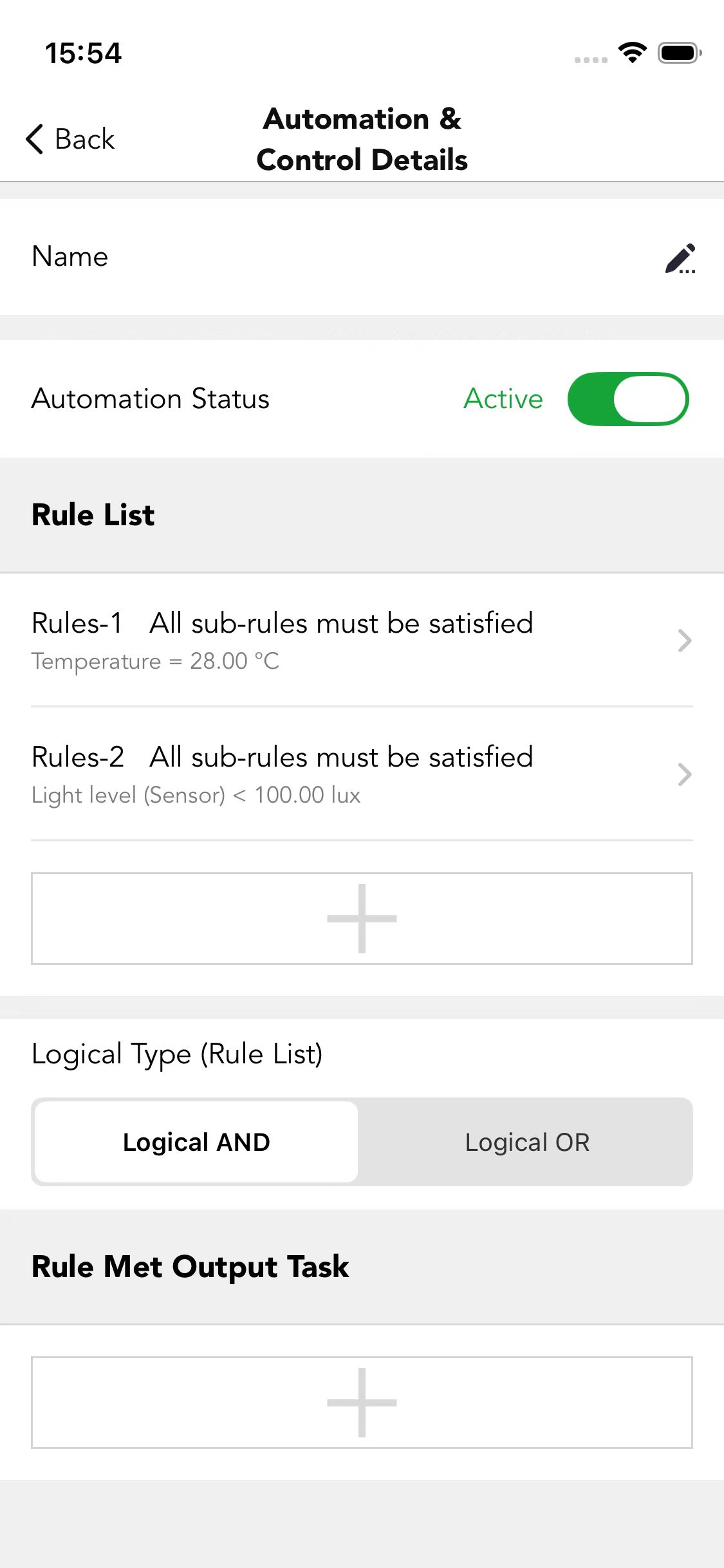
Rule Met Output Task
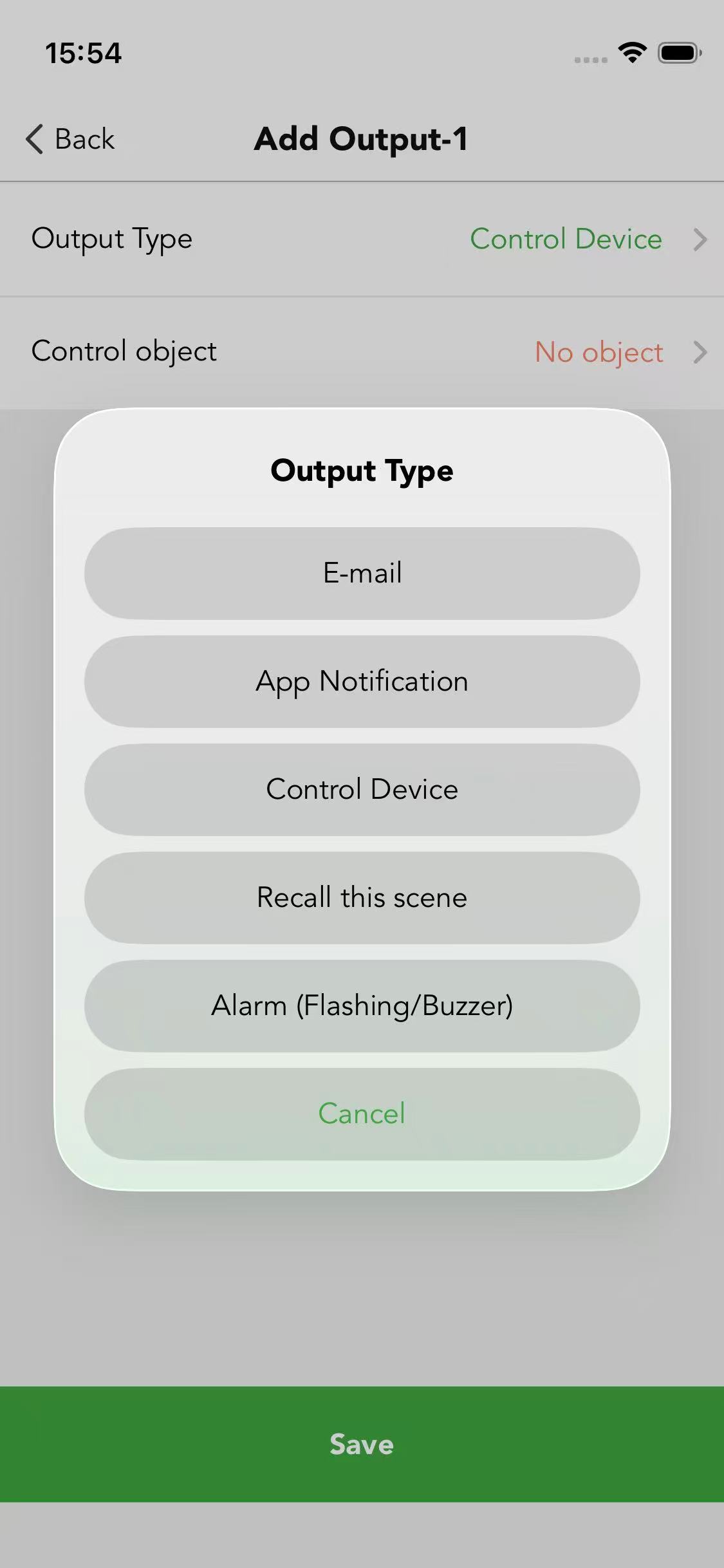
When the preset rules are met, an output task can be set to enable automatic control, with several output types available for selection:
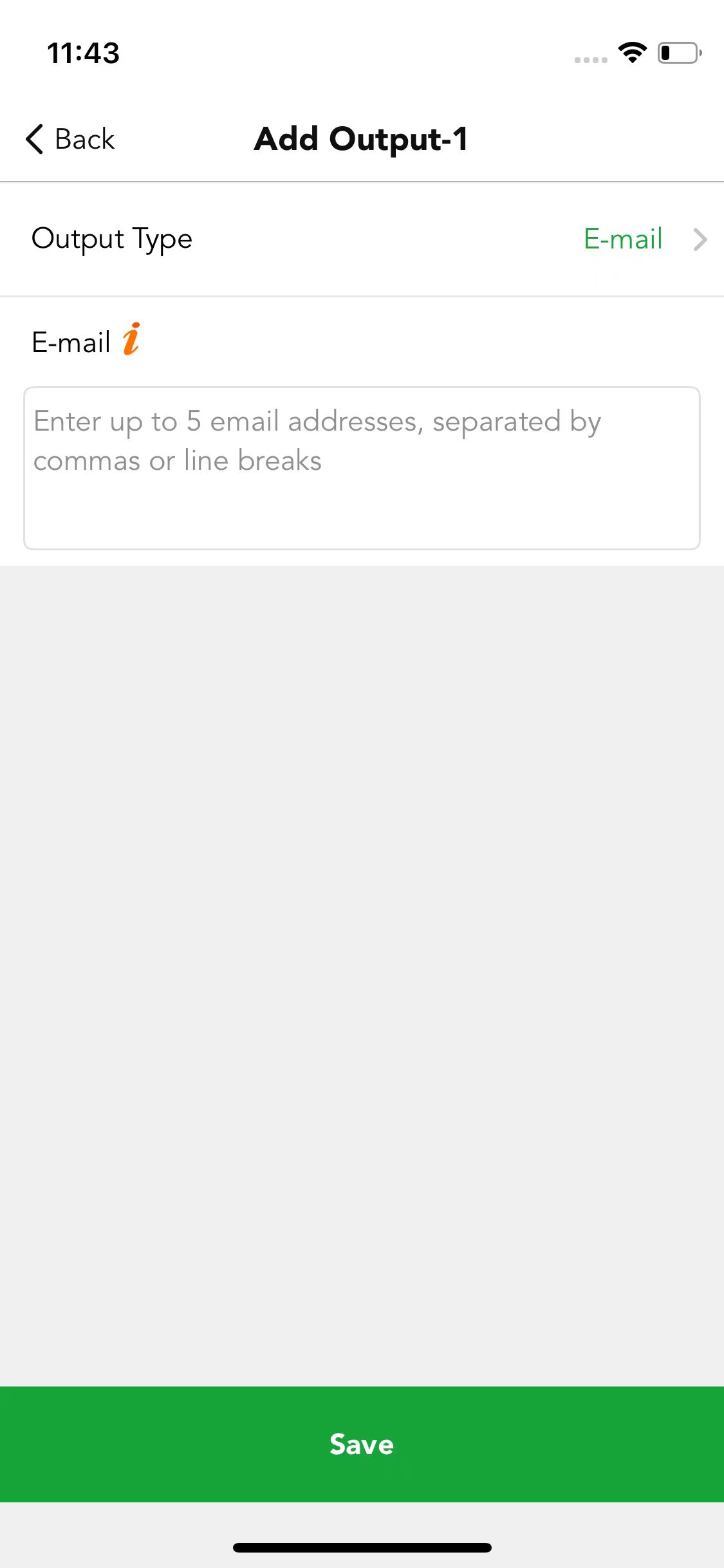
Email
Enter an email address to send a notification email to the recipient when the rules are triggered.
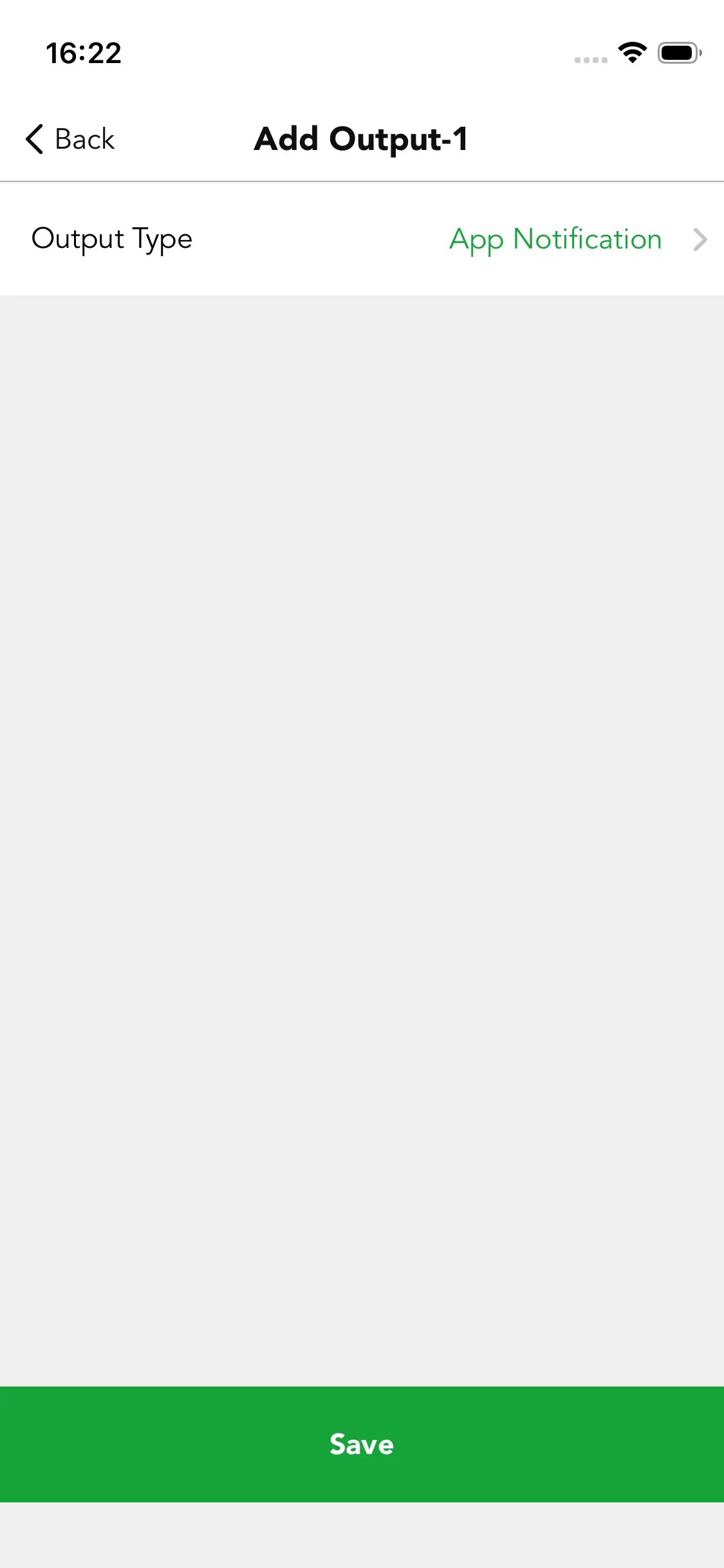
App Notification
Select App Notification to receive an app alert once the rules are met.
Control Device
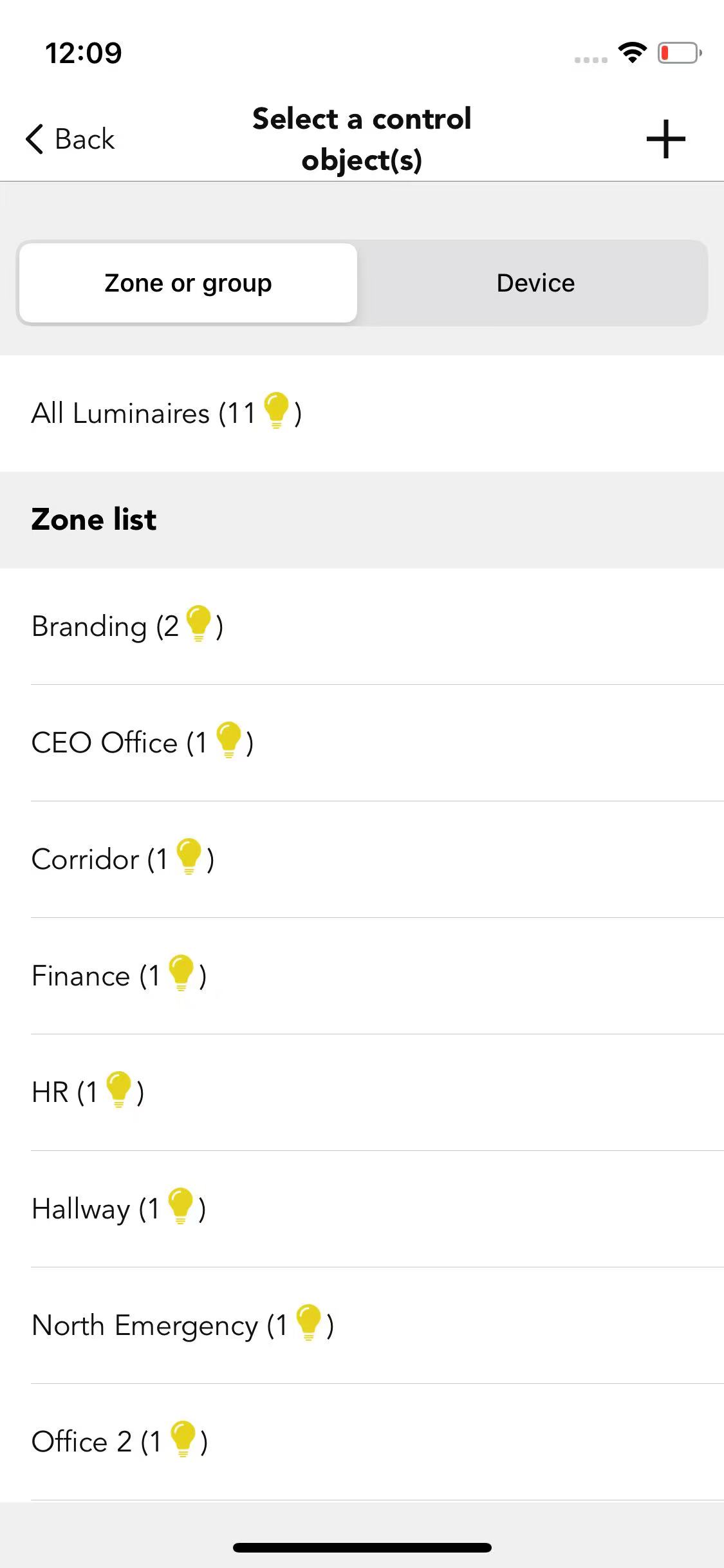
Set the output task to device control, which allows you to control a single luminaire or a whole zone/group based on actual needs.
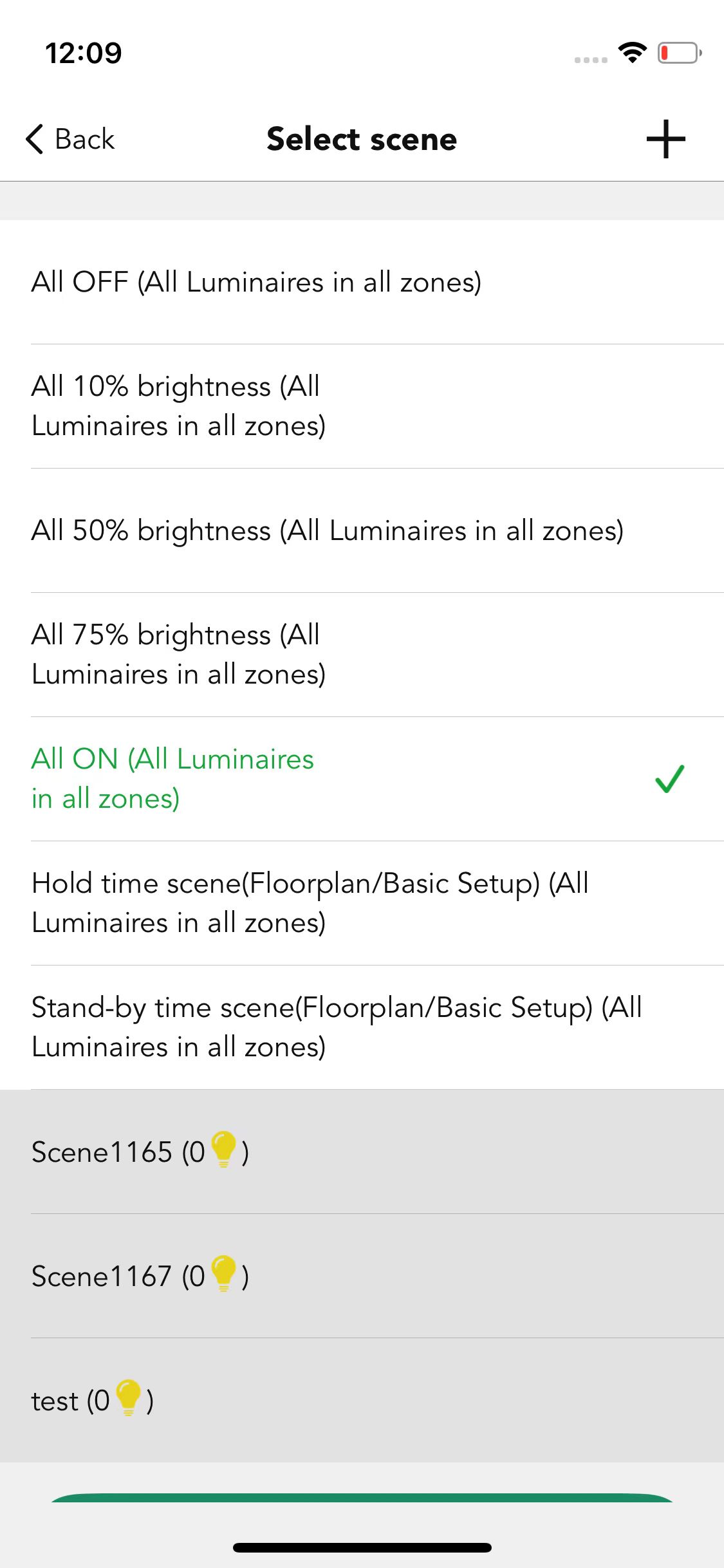
Recall this scene
Recall a pre-set scene when the rules are met.
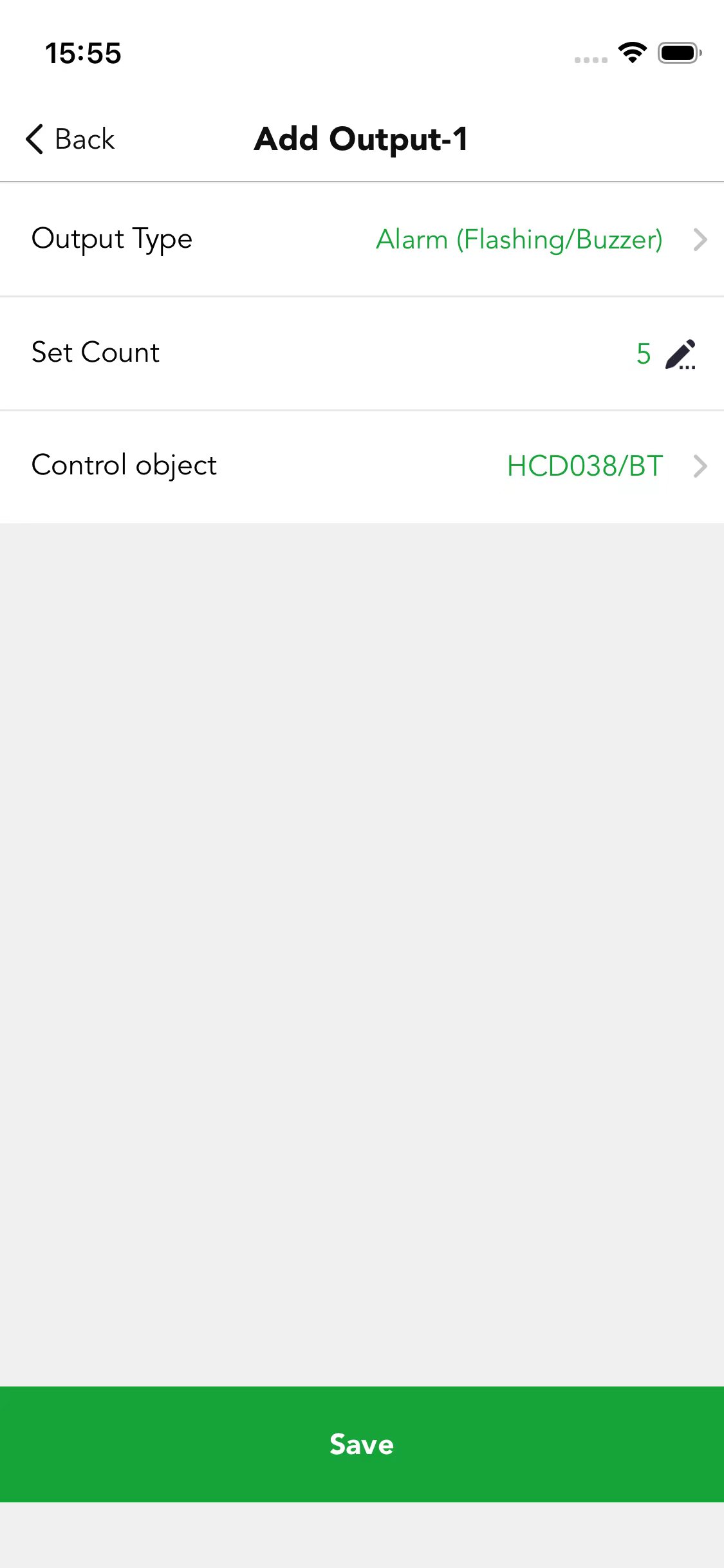
Alarm (Flashing/Buzzer)
Trigger an alarm to remind users to perform subsequent operations.